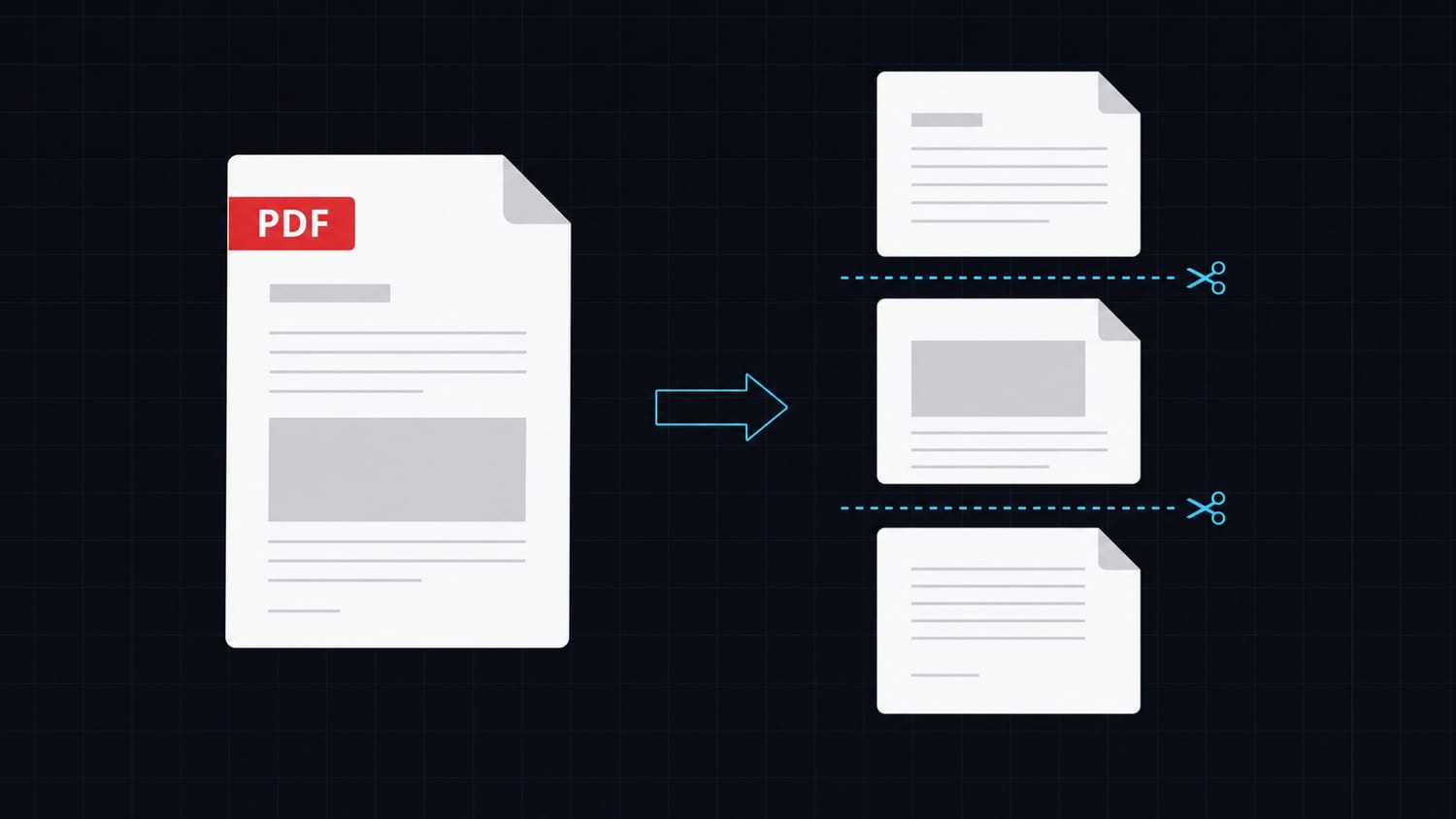

Your invoice has 3 line items and the PDF looks great. Then a customer orders 47 items and the PDF is a mess. Content overflows the page, the footer lands in the middle of a table row, and page numbers are wrong.
Multi-page PDFs with dynamic content are one of the most common sources of frustration in document generation. The content length is unpredictable, but the output needs to look polished every time.
Here is how to handle it properly.
The Problem: Dynamic Content Breaks Fixed Layouts
PDFs are page-based. HTML is not. When you convert HTML to PDF, something has to decide where one page ends and the next begins. That decision is where things go wrong.
Common issues:
- Page breaks in the middle of a table row: Half a row on one page, half on the next. Unreadable.
- Headers and footers missing on subsequent pages: The first page looks fine. Pages 2-5 have no context about what document the reader is looking at.
- Orphaned content: A section title at the bottom of a page with its content on the next page.
- Incorrect page numbers: "Page 1 of 1" on a 12-page document.
- Inconsistent margins: Content bumps into the header/footer area on overflow pages.
These problems get worse as the data grows. A template that works for 5 items falls apart at 50.
Why This Is Hard
The core tension is between two models:
- HTML model: Content flows continuously. The browser handles layout. There are no pages.
- PDF model: Content is divided into fixed-size pages. Every element has an exact position.
When you render HTML to PDF, the rendering engine has to split a continuous flow into discrete pages. CSS gives you some control over this, but the defaults are almost always wrong for document generation.
Most developers discover this after building their template and testing it with real data for the first time.
CSS Page Break Properties
CSS provides properties to control where page breaks happen. These are your primary tools:
/* Force a page break before this element */
.page-break-before {
  page-break-before: always;
  break-before: page;
}

/* Force a page break after this element */
.page-break-after {
  page-break-after: always;
  break-after: page;
}

/* Prevent a page break inside this element */
.keep-together {
  page-break-inside: avoid;
  break-inside: avoid;
}
The break-* properties are the modern standard. The page-break-* properties are the legacy version. Use both for maximum compatibility.
Practical Patterns
Pattern 1: Multi-Item Invoice
The most common case. A table of line items that can span multiple pages:
<table class="w-full border-collapse">
  <thead>
    <tr class="bg-gray-100">
      <th class="text-left p-2 border-b">Item</th>
      <th class="text-right p-2 border-b">Qty</th>
      <th class="text-right p-2 border-b">Price</th>
      <th class="text-right p-2 border-b">Total</th>
    </tr>
  </thead>
  <tbody>
    {{#each line_items}}
    <tr style="break-inside: avoid;">
      <td class="p-2 border-b">{{this.description}}</td>
      <td class="text-right p-2 border-b">{{this.quantity}}</td>
      <td class="text-right p-2 border-b">{{this.unit_price}}</td>
      <td class="text-right p-2 border-b">{{this.total}}</td>
    </tr>
    {{/each}}
  </tbody>
</table>
The key is break-inside: avoid on each row. This tells the renderer to never split a row across pages. If a row does not fit at the bottom of a page, it moves to the next page entirely.
Pattern 2: Repeating Table Headers
When a table spans multiple pages, readers need column headers on every page:
<style>
  thead {
    display: table-header-group;
  }
  tfoot {
    display: table-footer-group;
  }
</style>

<table class="w-full">
  <thead>
    <tr class="bg-gray-800 text-white">
      <th class="p-3 text-left">Description</th>
      <th class="p-3 text-right">Amount</th>
    </tr>
  </thead>
  <tbody>
    {{#each items}}
    <tr style="break-inside: avoid;">
      <td class="p-3 border-b">{{this.name}}</td>
      <td class="p-3 border-b text-right">{{this.amount}}</td>
    </tr>
    {{/each}}
  </tbody>
</table>
display: table-header-group on <thead> causes the header to repeat on every page. This is standard CSS and works in most PDF renderers.
Pattern 3: Sections with Forced Page Breaks
For reports with distinct sections, force each section to start on a new page:
{{#each sections}}
<div class="{{#unless @first}}break-before-page{{/unless}}">
  <h2 class="text-xl font-bold mb-4">{{this.title}}</h2>
  <p class="text-gray-700">{{this.content}}</p>

  {{#if this.chart_url}}
  <img src="{{this.chart_url}}" class="mt-4 max-w-full" />
  {{/if}}
</div>
{{/each}}
With a utility class:
.break-before-page {
  break-before: page;
  page-break-before: always;
}
The {{#unless @first}} check avoids a blank first page.
Pattern 4: Keep Content Groups Together
Prevent a heading from being orphaned at the bottom of a page:
{{#each entries}}
<div style="break-inside: avoid;" class="mb-6">
  <h3 class="font-bold text-lg">{{this.title}}</h3>
  <p class="text-gray-600 mt-1">{{this.description}}</p>
  <div class="mt-2 text-sm text-gray-500">
    {{this.date}} | {{this.category}}
  </div>
</div>
{{/each}}
break-inside: avoid on the wrapper keeps the title, description, and metadata together. If the group does not fit on the current page, the whole block moves to the next page.
Headers and Footers on Every Page
CSS has a mechanism for repeating headers and footers across pages using @page margin boxes:
@page {
  size: A4;
  margin: 2cm 1.5cm;

  @top-center {
    content: "Invoice #{{invoice_number}}";
    font-size: 10px;
    color: #666;
  }

  @bottom-left {
    content: "{{company_name}}";
    font-size: 9px;
    color: #999;
  }

  @bottom-right {
    content: "Page " counter(page) " of " counter(pages);
    font-size: 9px;
    color: #999;
  }
}
This gives you automatic page numbers and consistent branding on every page without any JavaScript or template logic.
Using Handlebars Loops for Dynamic Sections
Transactional.dev uses Handlebars for template logic. Here is how to combine loops with page break controls:
<!-- Cover page -->
<div class="h-full flex items-center justify-center">
  <div class="text-center">
    <h1 class="text-4xl font-bold">{{report_title}}</h1>
    <p class="text-gray-500 mt-4">Prepared for {{client_name}}</p>
    <p class="text-gray-400 mt-2">{{report_date}}</p>
  </div>
</div>

<!-- Each section starts on a new page -->
{{#each sections}}
<div style="break-before: page;">
  <h2 class="text-2xl font-bold mb-6">{{this.heading}}</h2>

  {{#each this.subsections}}
  <div style="break-inside: avoid;" class="mb-8">
    <h3 class="text-lg font-semibold mb-2">{{this.title}}</h3>
    <p>{{this.body}}</p>

    {{#if this.table_data}}
    <table class="w-full mt-4">
      <thead>
        <tr>
          {{#each this.columns}}
          <th class="text-left p-2 border-b font-medium">{{this}}</th>
          {{/each}}
        </tr>
      </thead>
      <tbody>
        {{#each this.table_data}}
        <tr style="break-inside: avoid;">
          {{#each this}}
          <td class="p-2 border-b">{{this}}</td>
          {{/each}}
        </tr>
        {{/each}}
      </tbody>
    </table>
    {{/if}}
  </div>
  {{/each}}
</div>
{{/each}}
The API call passes the data:
const response = await fetch(
  "https://api.transactional.dev/v1/generate",
  {
    method: "POST",
    headers: {
      "Content-Type": "application/json",
      "x-api-token": process.env.TRANSACTIONAL_API_KEY,
    },
    body: JSON.stringify({
      documentId: "your-report-template-uuid",
      variables: {
        report_title: "Q1 Performance Report",
        client_name: "Acme Corp",
        report_date: "March 2025",
        sections: [
          {
            heading: "Financial Summary",
            subsections: [
              {
                title: "Revenue",
                body: "Total revenue increased by 23%...",
                columns: ["Month", "Revenue", "Growth"],
                table_data: [
                  ["January", "$42,000", "+12%"],
                  ["February", "$48,000", "+14%"],
                  ["March", "$52,000", "+8%"],
                ],
              },
            ],
          },
        ],
      },
    }),
  }
);
Common Mistakes
Forgetting break-inside: avoid on table rows: This is the number one cause of ugly multi-page tables. Always add it to every <tr> in a dynamic table.
Using height: 100vh for full-page sections: vh units do not map to PDF pages. Use height: 100% on the root or explicit page dimensions instead.
Not testing with realistic data volumes: Always test your template with the maximum expected number of items. A template that works with 5 rows might break at 50.
Putting totals in the HTML flow: If you put a totals row at the end of a long table, it might end up on a different page than the last data row. Consider using tfoot with display: table-footer-group to keep it anchored.
Ignoring print margins: Content too close to the page edge gets clipped when printed. Use @page { margin: ... } to set safe margins.
Conclusion
Multi-page PDFs are not inherently hard. The challenge is knowing which CSS properties control page breaks and applying them consistently in your template.
The rules are simple: use break-inside: avoid to keep content together, break-before: page to force new pages, display: table-header-group for repeating headers, and @page rules for margins and page numbers.
With Transactional.dev, you write these CSS rules in your HTML template and pass dynamic data through the API. The rendering engine handles the pagination.
Get started with Transactional.dev and build multi-page documents that look right at any length.