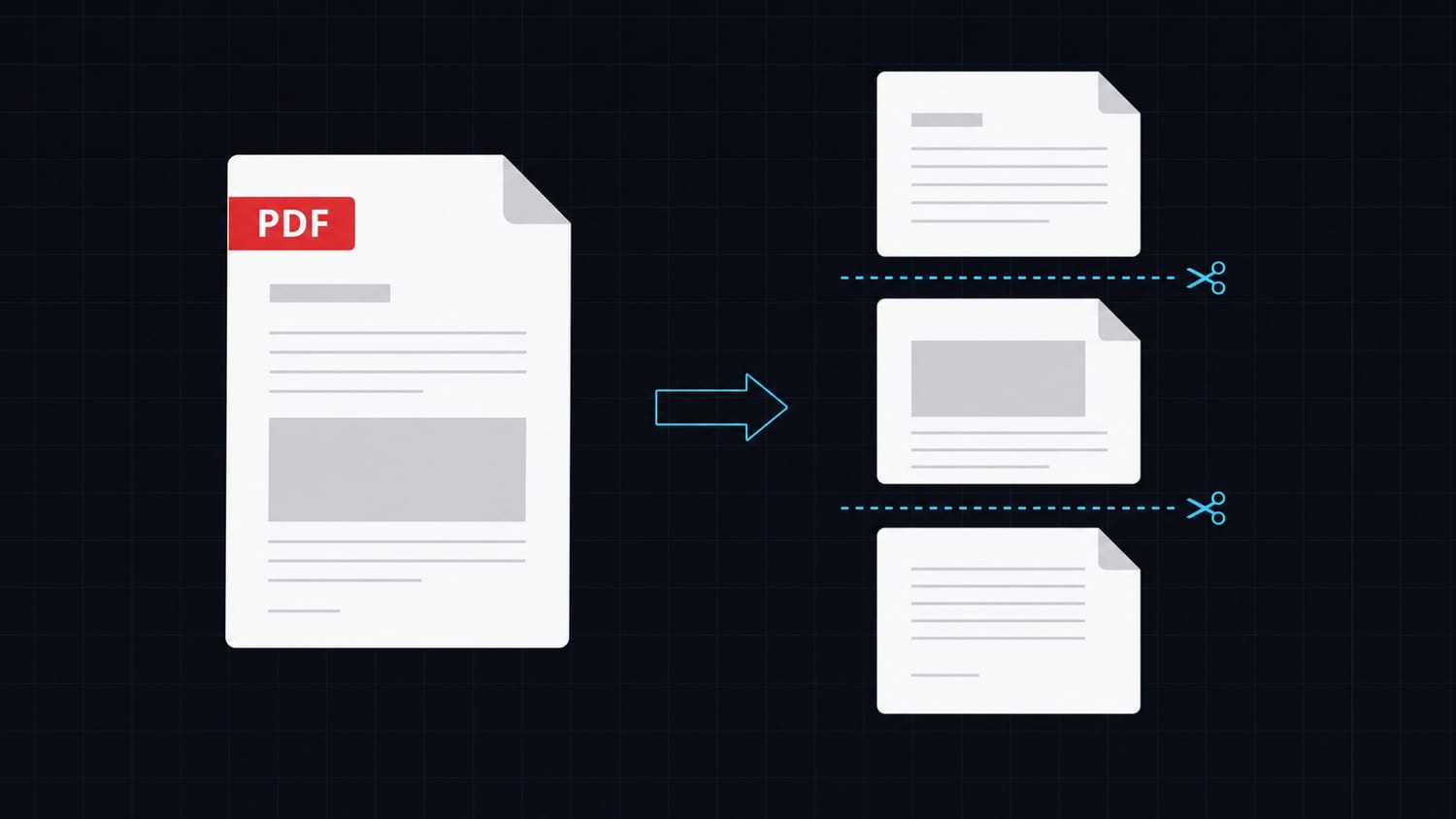

Adding a watermark to a generated PDF is one of those tasks that sounds trivial until you try to do it with a post-processing library. You end up parsing the PDF binary, layering content across pages, dealing with coordinate systems, and hoping nothing breaks when the page layout is complex. It gets tedious fast.
There is a simpler approach: handle it in the HTML template before the PDF is generated. If your PDF comes from an HTML source, you can use CSS to position a watermark layer that spans every page. No post-processing, no extra dependency, no coordinate math.
This guide shows you how to do exactly that, using CSS fixed positioning and Handlebars conditionals.
Why watermarks matter
Watermarks serve real purposes in document workflows:
- Draft review: mark documents as drafts until they are approved
- Confidential: flag sensitive contracts, reports, or legal documents
- Sample: show demo invoices or certificates without passing them off as real
- Void: invalidate a document after cancellation or refund
In most cases, these watermarks are conditional. A contract is watermarked "DRAFT" until signed. An invoice is watermarked "VOID" only after cancellation. Your template needs to handle both states.
The CSS approach
The core idea is a position: fixed element with a high z-index. In HTML-to-PDF rendering, position: fixed behaves like a page overlay, repeated across every page. This is exactly what you want for a watermark.
Here is the base pattern:
.watermark {
  position: fixed;
  top: 50%;
  left: 50%;
  transform: translate(-50%, -50%) rotate(-35deg);
  font-size: 80px;
  font-weight: 900;
  color: rgba(0, 0, 0, 0.08);
  text-transform: uppercase;
  letter-spacing: 0.1em;
  pointer-events: none;
  z-index: 9999;
  white-space: nowrap;
  user-select: none;
}
Key properties to understand:
position: fixedpins the element relative to the viewport (the page), not the document flowtop: 50% / left: 50%withtranslate(-50%, -50%)centers it preciselyrotate(-35deg)gives the classic diagonal anglergba(0, 0, 0, 0.08)keeps it subtle enough to read the content beneathz-index: 9999ensures it sits on top of everything else
Text watermark example
A full text watermark in your HTML template looks like this:
<style>
  .watermark {
    position: fixed;
    top: 50%;
    left: 50%;
    transform: translate(-50%, -50%) rotate(-35deg);
    font-size: 90px;
    font-weight: 900;
    color: rgba(0, 0, 0, 0.07);
    text-transform: uppercase;
    letter-spacing: 0.15em;
    pointer-events: none;
    z-index: 9999;
    white-space: nowrap;
    user-select: none;
  }
</style>

<div class="watermark">DRAFT</div>

<!-- rest of your document content -->
<div class="page">
  <h1>Invoice #INV-2026-0142</h1>
  ...
</div>
Adjust font-size based on your page dimensions. For A4 pages, 80-100px usually works well.
Image watermark
If you want a logo or image watermark instead of text, use the same positioning technique with an <img> tag:
<style>
  .watermark-img {
    position: fixed;
    top: 50%;
    left: 50%;
    transform: translate(-50%, -50%) rotate(-35deg);
    width: 60%;
    opacity: 0.06;
    pointer-events: none;
    z-index: 9999;
  }
</style>

<img class="watermark-img" src="{{watermarkLogoUrl}}" alt="" />
Pass the logo URL as a template variable. You can also inline the image as a base64 data URL if you want to avoid external requests during rendering.
For a centered stamp effect without rotation, remove the rotate and reduce the opacity to around 0.05:
.watermark-img {
  position: fixed;
  top: 50%;
  left: 50%;
  transform: translate(-50%, -50%);
  width: 50%;
  opacity: 0.05;
  z-index: 9999;
}
Conditional watermarks with Handlebars
The real power comes when you make watermarks conditional. Your template should render the watermark only when the document state requires it.
With Handlebars:
{{#if isDraft}}
<div class="watermark">DRAFT</div>
{{/if}}

{{#if isVoid}}
<div class="watermark watermark--void">VOID</div>
{{/if}}

{{#if isConfidential}}
<div class="watermark watermark--confidential">CONFIDENTIAL</div>
{{/if}}
Then in your API call, pass the appropriate flag:
{
  "documentId": "your-document-uuid",
  "variables": {
    "isDraft": true,
    "isVoid": false,
    "isConfidential": false,
    "customer": { "name": "Acme Corp" },
    "invoice": { "number": "INV-2026-0142", "total": 1280.50 }
  }
}
When the document is finalized, set isDraft: false and the watermark simply does not render. No post-processing, no separate step, no file manipulation.
You can also use a single watermarkText variable and render it dynamically:
{{#if watermarkText}}
<div class="watermark">{{watermarkText}}</div>
{{/if}}
Pass "watermarkText": "DRAFT", "CONFIDENTIAL", "SAMPLE", or leave it undefined to skip the watermark entirely.
Multi-page watermarks
Because position: fixed repeats on every page in PDF rendering, you get multi-page watermarks for free. There is nothing extra to configure. The element is fixed to the page viewport, so it appears on page 1, page 2, page 3, and so on automatically.
If you want the watermark only on specific pages, you need a different approach. One option is to use position: absolute inside a page container and repeat the watermark manually in each page block:
<style>
  .page {
    position: relative;
    page-break-after: always;
  }
  .page-watermark {
    position: absolute;
    top: 50%;
    left: 50%;
    transform: translate(-50%, -50%) rotate(-35deg);
    font-size: 80px;
    font-weight: 900;
    color: rgba(0, 0, 0, 0.07);
    z-index: 9999;
    white-space: nowrap;
  }
</style>

{{#each pages}}
<div class="page">
  {{#if this.showWatermark}}
  <div class="page-watermark">DRAFT</div>
  {{/if}}
  <!-- page content -->
</div>
{{/each}}
This gives you per-page control at the cost of more template complexity.
API call example
Here is a complete example generating a watermarked PDF using Transactional.dev:
curl -X POST https://api.transactional.dev/v1/generate \
  -H "x-api-token: YOUR_API_TOKEN" \
  -H "Content-Type: application/json" \
  -d '{
    "documentId": "1d8e5d56-1a4f-4b62-8c33-2d34a64b2f00",
    "variables": {
      "isDraft": true,
      "customer": {
        "name": "Acme Corp",
        "email": "ops@acme.example"
      },
      "invoice": {
        "number": "INV-2026-0142",
        "total": 1280.50
      }
    }
  }'
The response returns a signed URL pointing to the generated PDF:
{
  "url": "https://files.transactional.dev/client/42/generated/.../1716470000000.pdf",
  "documentId": "1d8e5d56-1a4f-4b62-8c33-2d34a64b2f00"
}
The watermark is baked into the PDF. No second pass needed.
Tips
Color choices: rgba(0, 0, 0, 0.07) works well on white backgrounds. For dark-themed documents, use rgba(255, 255, 255, 0.1). Test at 100% zoom before deploying.
Font weight: Use 700 or 900. Thin fonts at low opacity become invisible in print.
Rotation angle: -35deg is a common convention. Some style guides prefer -45deg for a more aggressive diagonal.
Z-index: Set it high (9999 or higher) to avoid content overlapping the watermark. This can matter if your template uses positioned elements.
Print safety: If your PDF will be printed, increase opacity slightly. Printers often lose low-opacity elements, especially on non-white paper.
Common mistakes
Using position: absolute for multi-page watermarks: An absolutely positioned element stays in the document flow of its containing block. It will not repeat across pages. Use position: fixed for page-spanning watermarks.
Forgetting white-space: nowrap: Without it, long watermark text like "CONFIDENTIAL" wraps awkwardly. Always add white-space: nowrap for text watermarks.
Opacity too low: 0.04-0.05 looks fine on screen but disappears on print or after JPEG compression. Use 0.07-0.12 for better print durability.
Hardcoding the watermark in the template: If you hardcode <div class="watermark">DRAFT</div> without a conditional, every PDF gets the watermark, including the final signed version. Always gate it with a Handlebars conditional.
Using background-image on the body: Some developers try to add watermarks via background-image on the <body>. This usually only appears on the first page in PDF renderers. Stick with position: fixed.
Wrapping up
Watermarks in generated PDFs do not require a post-processing step. If your PDFs come from HTML templates, you already have everything you need: CSS positioning and Handlebars conditionals. Define the watermark layer in the template, control it with a variable, and let the renderer handle the rest.
If you want to try this without setting up a rendering stack, Transactional.dev gives you a template-based PDF API where you define your HTML/CSS template once and generate PDFs via a single API call. You can set up conditional watermarks, pass isDraft: true or isDraft: false per request, and get back a production-ready PDF with no infrastructure to maintain.